How to Use AnyDesk for Remote Printing: A Guide for Hybrid Workers


Asif Mohammad Sovon
Asif Mohammad Sovon, IT Assistant at Bangladesh Air Force and Fileion tech writer, simplifies tech t...
You are working from home. The final contract is ready. Your manager needs a signed hard copy by noon. The printer is sitting at the office, and you are not.
This is a real scenario for millions of hybrid workers every single day. Printing remotely sounds like a technical headache, but it is actually straightforward once you know the right tool. AnyDesk lets you connect to your office computer from home and send print jobs directly to your local printer. No IT team, no VPN setup, no stress.
In this guide, you will learn how AnyDesk handles remote printing, which settings to configure, and how to complete the full workflow from your home desk.
Let's dive into the basics before moving to the hands-on steps.
What is AnyDesk?
AnyDesk is a remote desktop application that lets you access and control another computer over the internet in real time. You can see the remote screen, move the cursor, open files, and run applications exactly as if you were sitting in front of that machine.
It is used by IT professionals, remote employees, freelancers, and businesses across every industry. One of its most practical features for hybrid workers is remote printer redirection. This allows you to open a document on your remote office computer and print it directly to a printer connected to your home device. The document travels through the session and comes out on your local printer.
Step-by-Step Guide: How to Use AnyDesk for Remote Printing
-
Download and install AnyDesk on both computers. This means your home device and the office machine you want to connect to. You can get the installer from the official AnyDesk website or download it directly from Fileion.
-
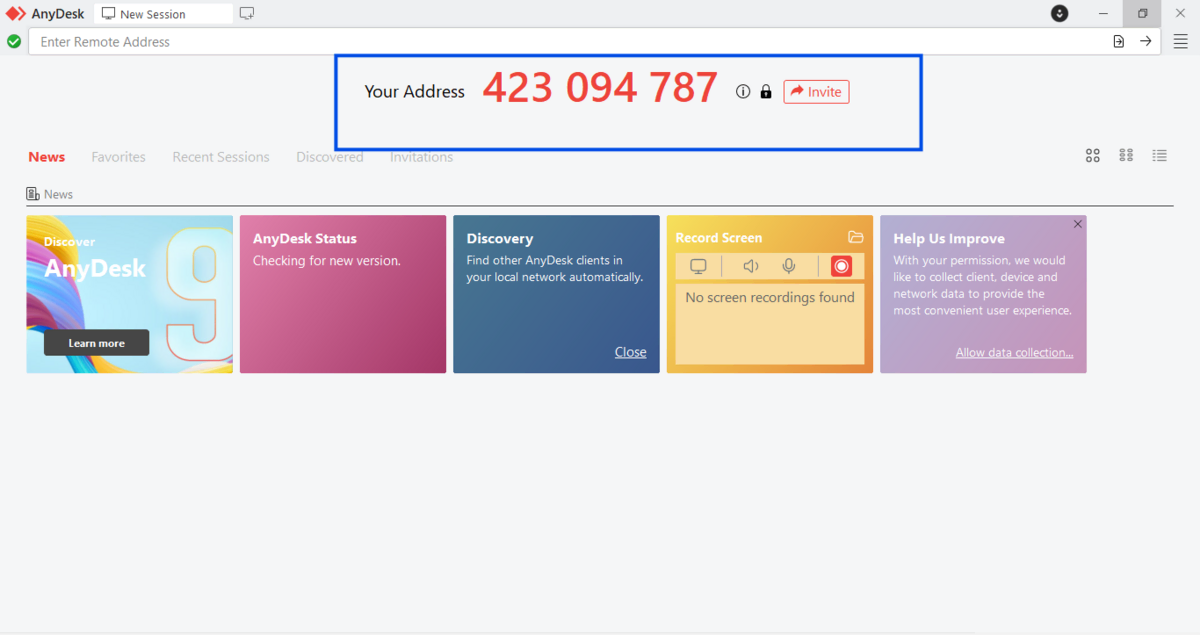
Open AnyDesk on both devices. Each one will show a unique 9-digit AnyDesk ID on the main screen. This ID is how devices find each other.
-
On your home computer, type the remote office machine's AnyDesk ID into the search bar. Then click Connect.
-
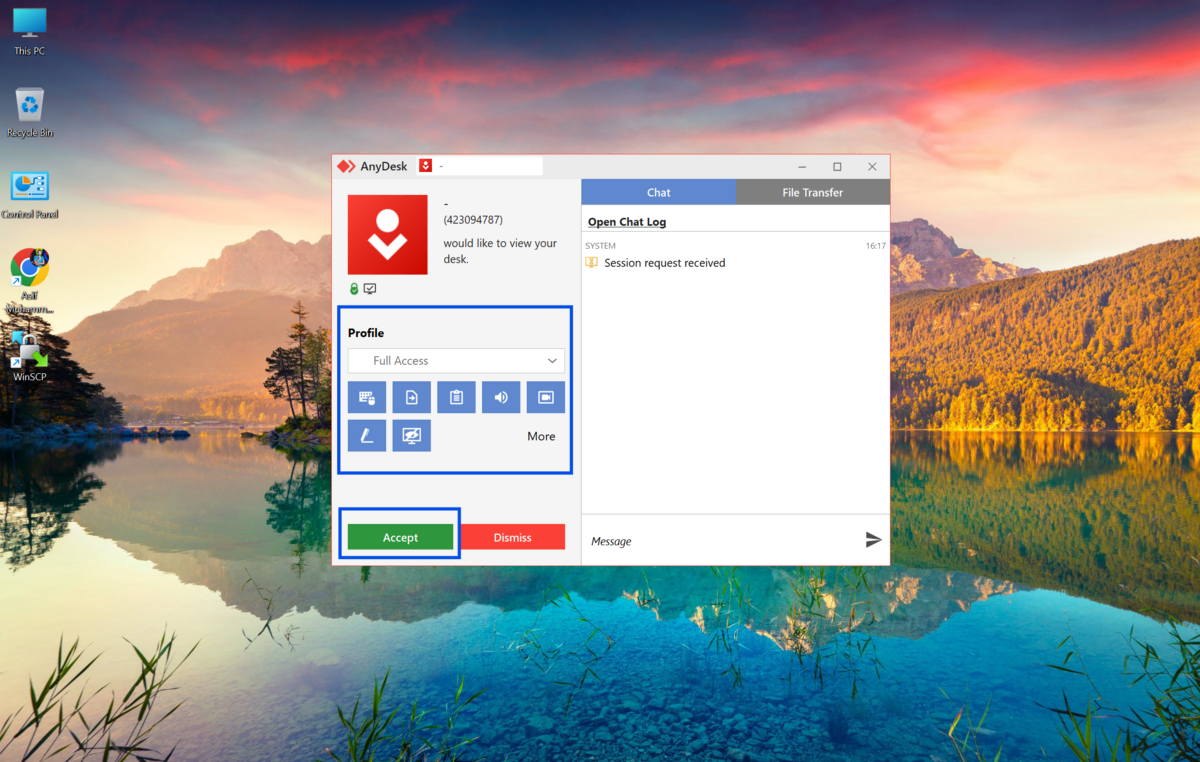
The remote computer will show a permission request on screen. If someone is present at the office, they accept it. If you are using unattended access, the connection goes through automatically after you enter the session password.
-
Once the session is live, look at the AnyDesk toolbar at the top of your screen. Click the menu icon on the right side to open the session panel.
-
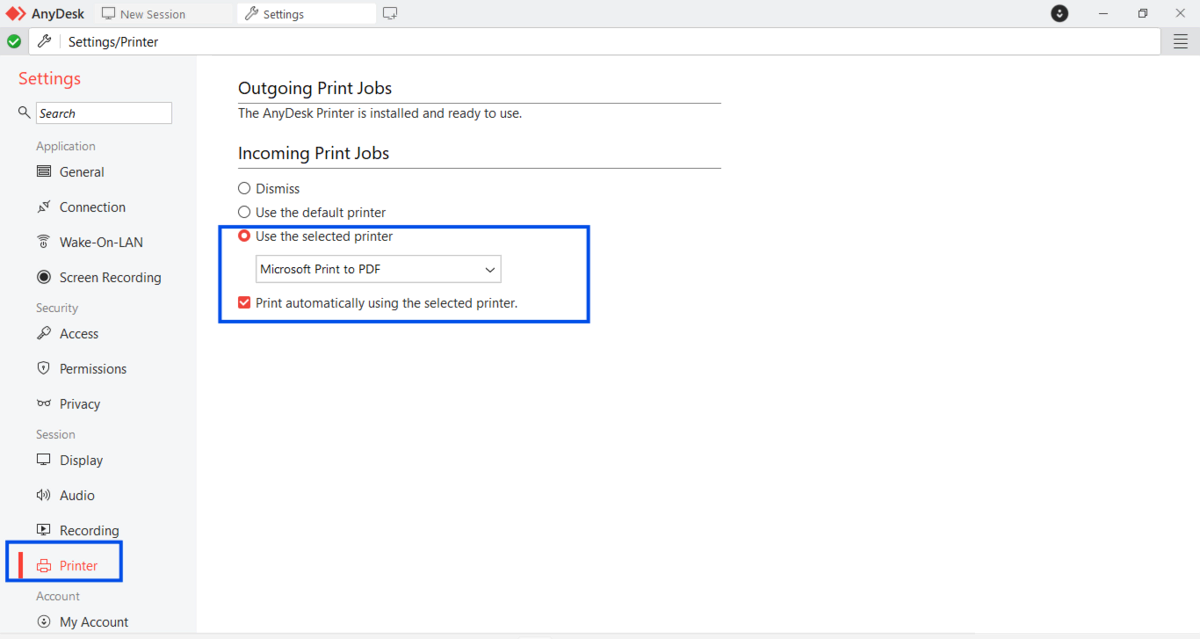
Navigate to Settings. Look for the tab related to Printer. Find the option that says something like "Incoming Print Job" and turn it on.
-
On the remote machine, open the file you need to print. This could be a PDF, a Word document, an email, or a webpage.
-
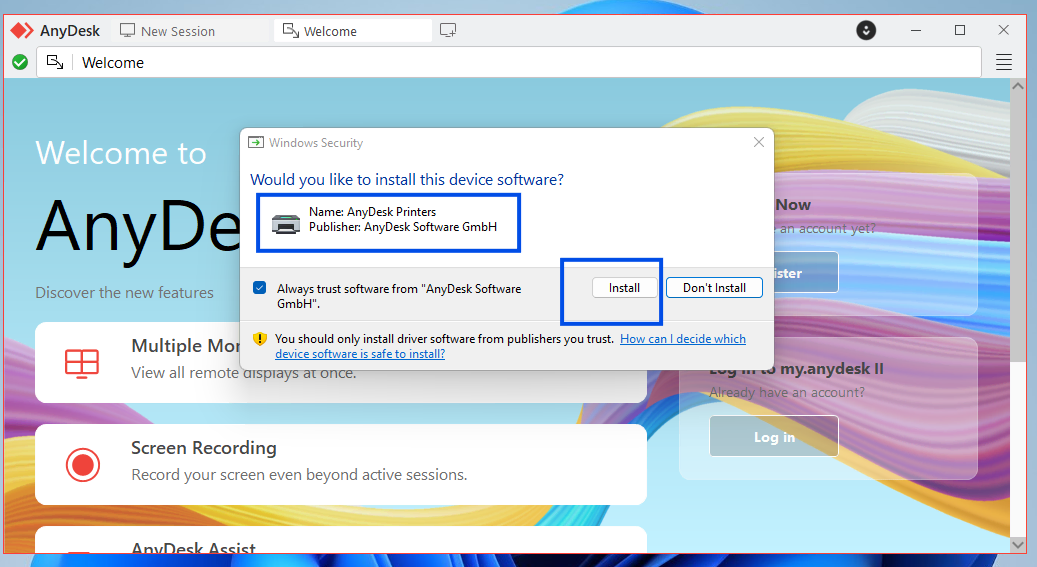
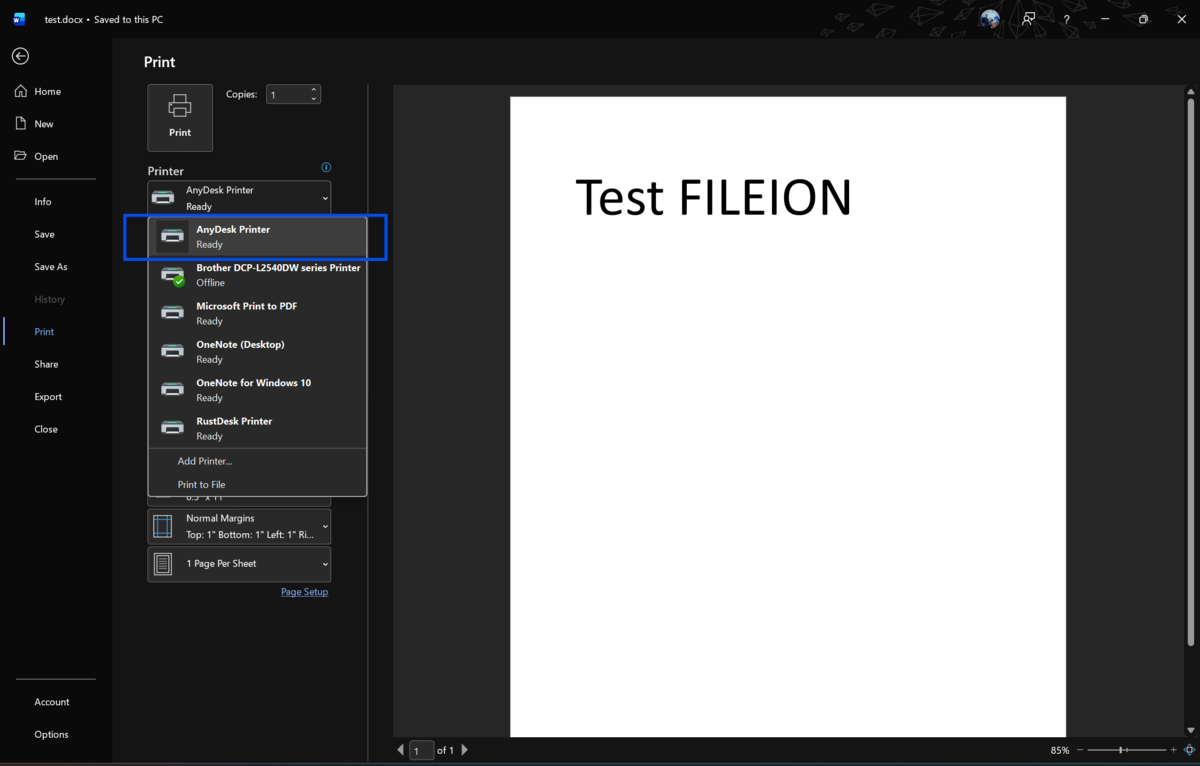
Press Ctrl + P on the remote machine to open the print dialog. Scroll through the printer list and look for an entry labeled "AnyDesk Printer" or your local printer name with a remote tag next to it.
-
Select that printer. It represents your home or local printer being redirected through the AnyDesk session.
-
Set your print preferences. Choose the number of copies, the page range, and the paper size. Then click Print.
-
AnyDesk processes the job through the active session and sends it to your local printer. The printout will come out at your location within moments.
-
After printing, close the print dialog on the remote machine. End the session by clicking Disconnect in the AnyDesk toolbar on your home computer.
Quick Tips
-
Set up unattended access if you regularly print without a colleague present at the office. Go to security settings on the remote device and assign a session password.
-
If the AnyDesk Printer does not appear in the list, disconnect the session, confirm the printer redirection setting is on, and reconnect.
-
Switch AnyDesk to "Optimize for Reaction Time" under Performance settings when your internet is slow. It keeps the session usable for navigating menus and printing dialogs.
-
Keep your local printer drivers updated. Outdated drivers are a common reason. The redirected printer appears on the list but fails to complete the job.
-
Add the remote computer to your AnyDesk address book. It saves time and prevents you from mistyping ID during a busy workday.
Common Mistakes to Avoid
Skipping the printer redirection setting: This is the most frequent issue. Users connect to the remote machine first and then search for the printer, only to find it is not there. The redirection must be enabled inside Session Settings during an active connection. If you missed it, disconnect and start again with the setting turned on.
Outdated version of AnyDesk: Older builds had inconsistent printer redirection support. Remote printing reliability has improved significantly in recent releases. Always run the latest stable version on both devices.
Connecting to the wrong machine: It sounds simple, but entering the wrong AnyDesk ID is a real mistake in busy work environments. Use the address book feature to label and save your devices. It removes the guesswork entirely.
Pricing and Availability
AnyDesk offers a free version for personal and non-commercial use. It includes core remote access features and basic remote printing support.
For business use, paid plans are available. The entry-level Solo plan covers a single user and charges $17.52 per month.
The Standard and Advanced plans add user management, session permissions, reporting, and priority support; they charge $28.72 to $62.32. All business plans are billed annually. A free trial is available for teams before committing to a subscription.
AnyDesk is available on Windows, macOS, Linux, iOS, and Android.
Final Verdict
AnyDesk is a reliable and practical solution for remote printing in hybrid work setups. The printer redirection feature is built into the core application. It does not require complex configuration, additional software, or network changes. Once the session is active and the setting is enabled, the workflow feels close to printing from a local machine.
It works well for individual remote employees handling day-to-day printing tasks. It also suits small business teams and IT administrators managing remote workers across multiple locations. The free version covers personal printing needs, and the paid tiers add the security controls and management features that professional environments require.
If remote printing is part of your regular work routine, AnyDesk is worth setting up today. Download AnyDesk directly from our site and have your first remote print job running within minutes.
FAQs
Can I use AnyDesk for remote printing without paying for a subscription?
Yes. The free version of AnyDesk supports remote printing for personal and non-commercial use. You can connect to a remote machine and redirect your local printer at no cost. If you are using AnyDesk in a business context, a paid license is required under AnyDesk's terms of use.
Why is my printer not appearing in the remote session?
The most likely cause is that printer redirection was not enabled before or during the session. Open Session Settings in AnyDesk, find the local printer option, enable it, and reconnect. Also, verify that your local printer is powered on, online, and has up-to-date drivers installed.
Does AnyDesk remote printing work on a Mac?
AnyDesk supports macOS and allows remote connections. Printer redirection on Mac may require additional steps inside System Preferences to grant AnyDesk the necessary permissions. For the most current macOS instructions, refer to the AnyDesk support documentation directly.
Is AnyDesk safe to use for printing sensitive work documents?
AnyDesk secures sessions with TLS 1.2 encryption and RSA 2048 asymmetric key exchange. For work use, always set a strong session password for unattended access and enable two-factor authentication where it is available. Avoid connecting to unsecured public Wi-Fi networks when handling confidential documents.
Can AnyDesk print to a shared network printer at home?
AnyDesk redirects printers that are installed and visible on your local device. If your home network printer is set up and recognized as an installed printer on your home computer, it can appear in the remote session's printer list. Printers that are not installed locally on your device will not show up automatically in the redirected list.
Comments
Let us know about your thoughts
Explore more articles related to AnyDesk
Here you will find all the latest tips and tricks about AnyDesk. Also you will get many solution of problems which you may face while using this app.

Published at: Mar 08, 2026
The Ultimate Security Checklist for AnyDesk Using 2FA and RSA 2048 Key Exchange
Remote desktop tools are convenient, but convenience without security is a risk you cannot afford....
Published at: Apr 12, 2026
Optimizing AnyDesk for Slow Internet: Best Settings for Low-Bandwidth Networks
If you have ever tried using AnyDesk on a slow internet connection, you already know the...


Click. Connect. Control. Anywhere.
AnyDesk is a fast, secure, and lightweight remote desktop app that lets you access and control devices from anywhere. Whether you're providing IT support, collaborating with teammates, or working on the go, AnyDesk ensures smooth performance on all major platforms.