Optimizing AnyDesk for Slow Internet: Best Settings for Low-Bandwidth Networks

Asif Mohammad Sovon
Asif Mohammad Sovon, IT Assistant at Bangladesh Air Force and Fileion tech writer, simplifies tech t...
Best AnyDesk Settings to Improve Performance on Low-Bandwidth Connections
1. Lower the Display Quality Settings
2. Reduce Background Transmission Features
3. Set a Manual Bandwidth Limit
4. Enable Hardware Acceleration Carefully
5. Minimize Active Applications on the Remote Side
6. Prefer a Wired Connection Over Wi-Fi
What is the minimum internet speed needed to use AnyDesk?
Does lowering AnyDesk's quality affect security?
Can AnyDesk work on a mobile data connection?
Why does AnyDesk lag even with a fast internet connection?
Is there a portable version of AnyDesk that works without installation?
If you have ever tried using AnyDesk on a slow internet connection, you already know the frustration. The screen freezes, and inputs lag. The session drops before you finish anything useful. But here is the thing, this problem is often not with AnyDesk itself. It is the default settings, which are built for comfort, not for constrained networks.
With a few targeted adjustments, AnyDesk can run surprisingly well even on low-bandwidth connections. This guide walks you through exactly which settings to change, and why each one matters.
What Eats Your Bandwidth
AnyDesk works by continuously streaming visual data from the remote screen to your local device. Every pixel update, every animation, every sound byte travels through your connection in real time. On a fast network, that is fine. On a slow one, it becomes a bottleneck quickly.
The goal of optimization is to reduce the volume of data being transmitted per second without losing the ability to get your work done.
Best AnyDesk Settings to Improve Performance on Low-Bandwidth Connections
1. Lower the Display Quality Settings
This is the single most effective change you can make. AnyDesk allows you to control the visual quality of the remote session.
Open AnyDesk and go to Settings, then select the Display tab. You will find a quality slider that ranges from "Best quality" to "Best performance."
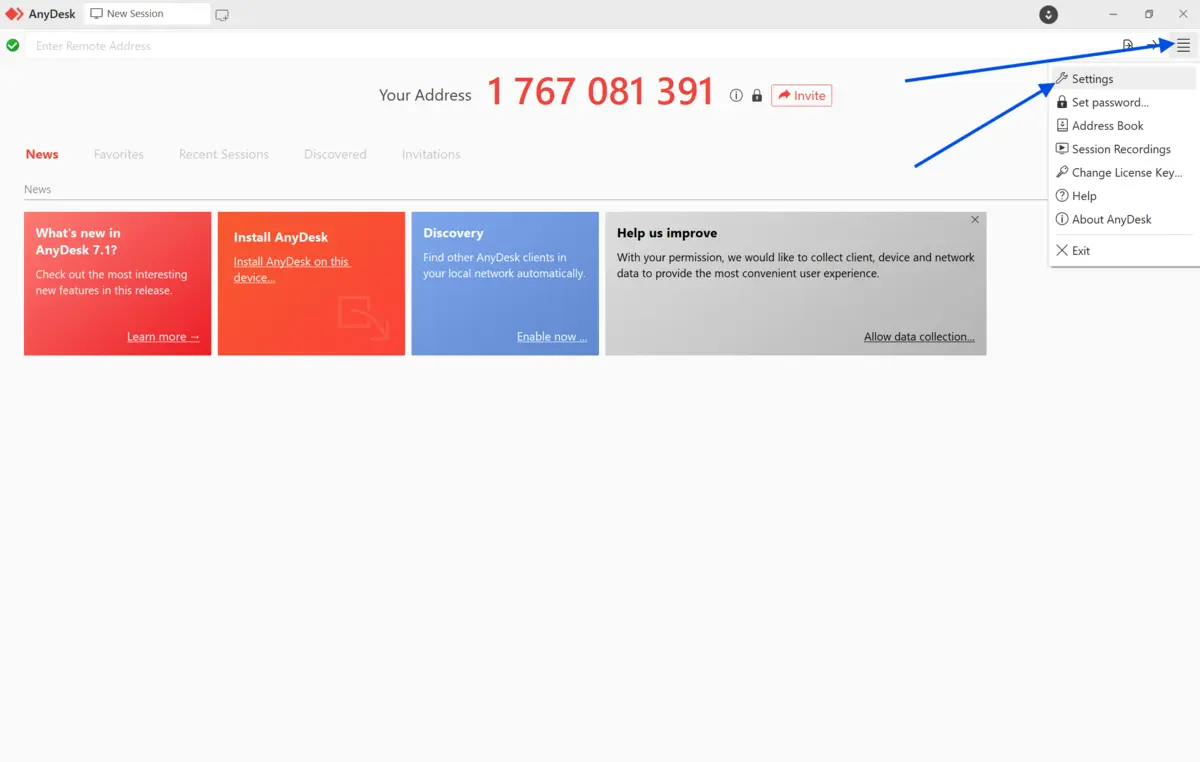
For slow internet, move this slider all the way toward "Best performance." This reduces image fidelity but dramatically cuts down the data load per frame.
2. Reduce Background Transmission Features
AnyDesk includes features that are convenient but bandwidth-heavy. Turning them off when working on slow networks helps stabilize your session.
Disable remote sound transmission. Unless you need to hear audio from the remote machine, there is no reason to stream it. Go to Settings, then Audio, and disable audio transmission entirely.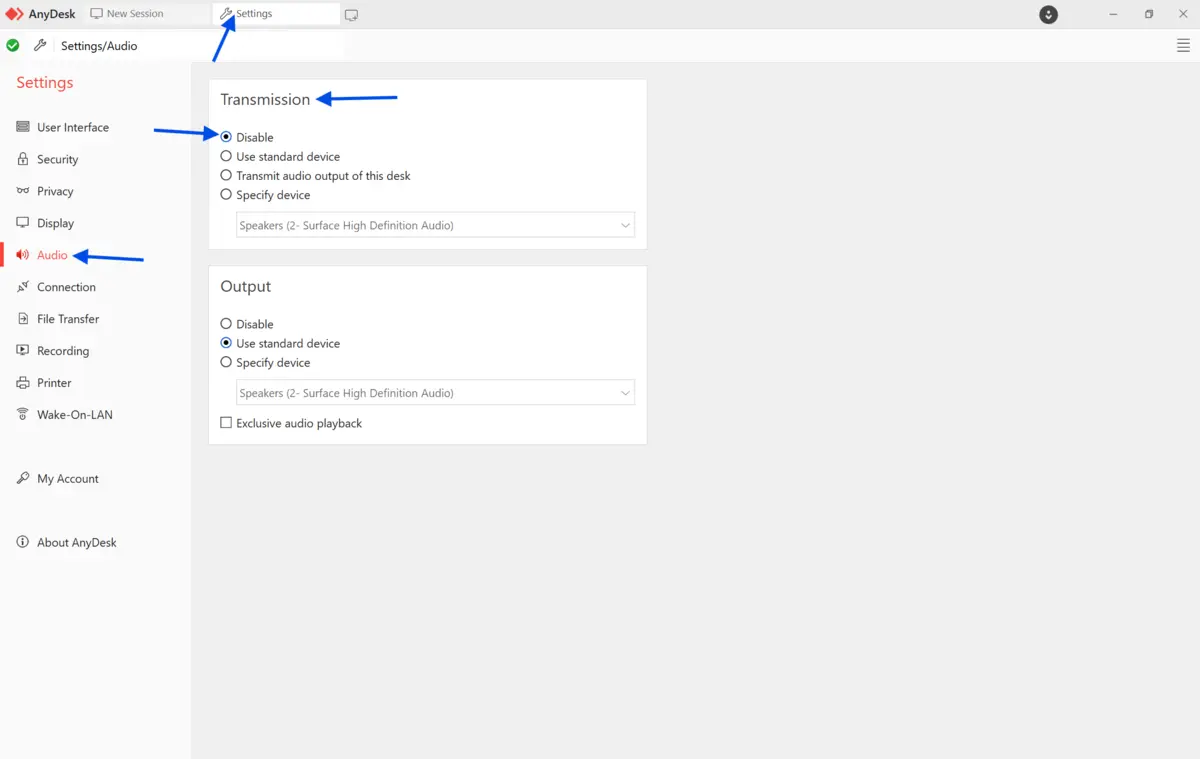
Disable the remote cursor display if it is not needed. Go to Settings, then Display, and switch the option to 'Hide remote cursor'. This reduces minor but cumulative data overhead.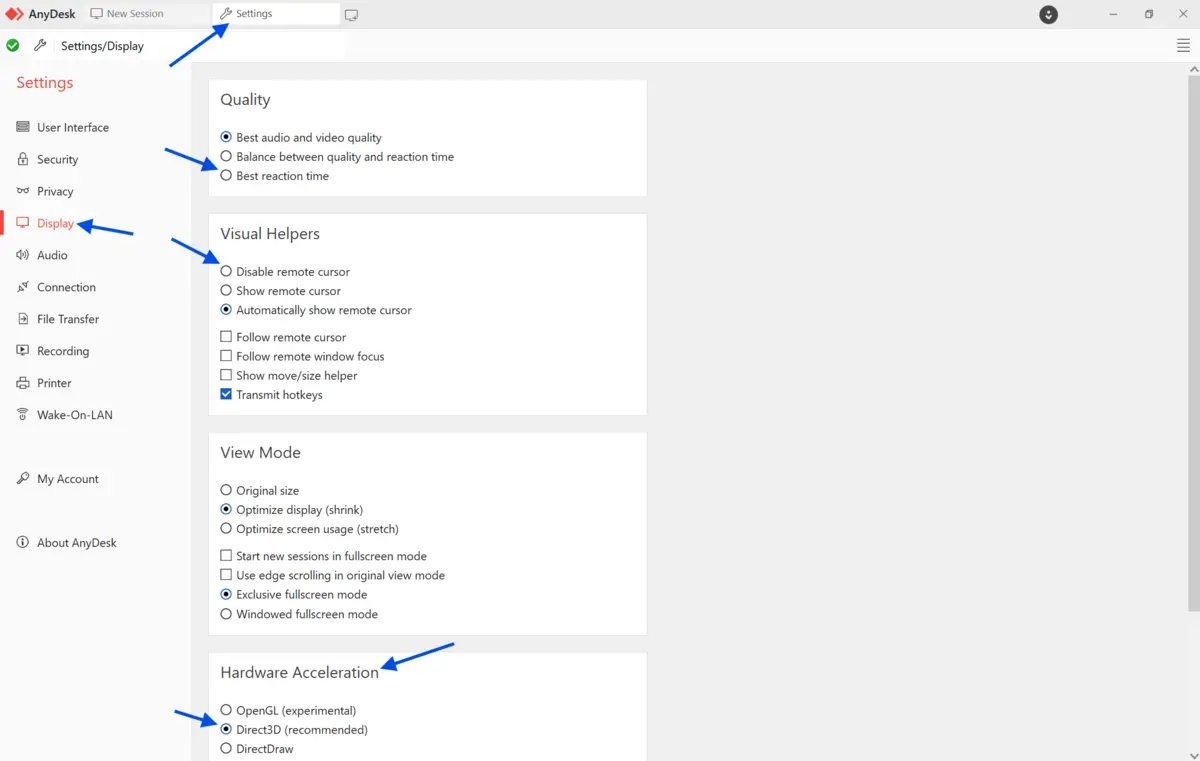
If the remote desktop has a dynamic wallpaper, consider removing it or asking the remote user to set a plain background. Animated or image-heavy desktops generate constant pixel updates even when nothing is being actively changed on screen.
3. Set a Manual Bandwidth Limit
AnyDesk includes an option to set a bandwidth cap directly from within the application. This may seem counterintuitive, but capping bandwidth forces the application to operate within a defined range rather than attempting to burst and then throttle unpredictably.
4. Enable Hardware Acceleration Carefully
AnyDesk supports hardware-accelerated encoding and decoding, which offloads processing from your CPU to your GPU. On most modern devices, enabling this can improve session stability and reduce the time it takes to render each frame.
Go to Settings, then Display, and enable hardware acceleration if your device supports it. On older hardware, test it first, as it can occasionally cause instability rather than improve performance.
5. Minimize Active Applications on the Remote Side
This is not a setting inside AnyDesk, but it matters. Ask the user on the remote machine to close unnecessary applications, especially those with animations, video playback, or frequent screen refreshes. The fewer visual changes happening on the remote desktop, the less data AnyDesk needs to transmit.
6. Prefer a Wired Connection Over Wi-Fi
Wi-Fi adds latency and inconsistency. If you are operating on a slow connection and have any option to plug into an Ethernet cable, even temporarily, do it. A stable 2Mbps wired connection will outperform a 5Mbps Wi-Fi connection in terms of session quality for remote desktop use. For the internet speed test, you may check out: https://www.speedtest.net/ 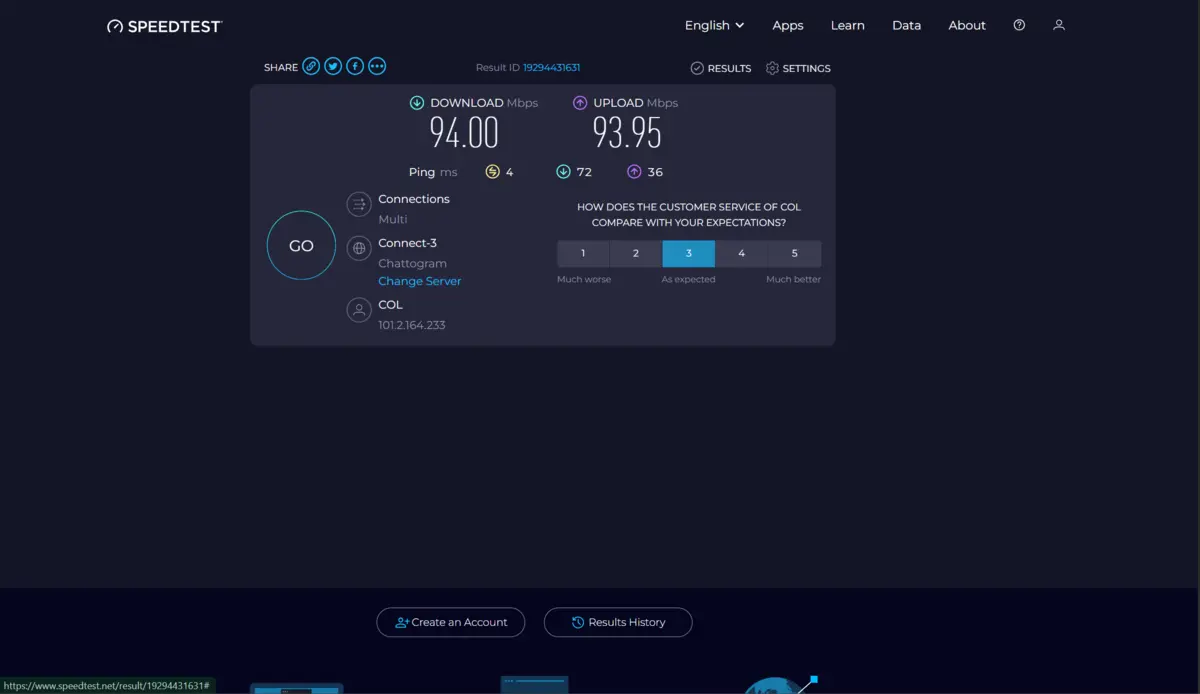
Final Verdict
AnyDesk is one of the lighter remote desktop tools available, and it handles low-bandwidth conditions better than most competitors when configured correctly. The key changes, including reducing visual quality, disabling sound, and switching to a speed-optimized profile, can turn a frustrating session into a functional one.
If you are not yet using AnyDesk, it is worth downloading and testing these settings on your network. The free version covers personal use and includes access to all the performance settings discussed in this guide. You can get the latest version directly from the Fileion download page and start applying these optimizations right away.
FAQ
What is the minimum internet speed needed to use AnyDesk?
AnyDesk can technically function at speeds as low as 100 Kbps, though the experience is very limited at that level. For practical remote work, a stable connection of 1 Mbps or higher is recommended, especially after applying the low-bandwidth settings described above.
Does lowering AnyDesk's quality affect security?
No. The quality and compression settings in AnyDesk only affect visual fidelity and transmission speed. The encryption protocol used by AnyDesk, which is TLS 1.2 with RSA 2048 key exchange, remains active regardless of quality settings.
Can AnyDesk work on a mobile data connection?
Yes, AnyDesk can operate over mobile data, including 3G, 4G, or 5G. On 3G or limited data plans, applying the low-bandwidth settings in this guide is strongly recommended to avoid excessive data usage and session lag.
Why does AnyDesk lag even with a fast internet connection?
Lag can occur due to issues on either end of the connection, including CPU load, high screen resolution on the remote machine, busy desktop visuals, or routing problems between geographic regions. Running the speed-optimized profile and reducing remote desktop activity usually resolves these cases.
Is there a portable version of AnyDesk that works without installation?
Yes. AnyDesk offers a portable executable that does not require installation. It runs directly after download, which makes it useful for quick access on shared or managed devices.
Comments
Let us know about your thoughts
Explore more articles related to AnyDesk
Here you will find all the latest tips and tricks about AnyDesk. Also you will get many solution of problems which you may face while using this app.

Published at: Mar 08, 2026
The Ultimate Security Checklist for AnyDesk Using 2FA and RSA 2048 Key Exchange
Remote desktop tools are convenient, but convenience without security is a risk you cannot afford....
Published at: Apr 12, 2026
Optimizing AnyDesk for Slow Internet: Best Settings for Low-Bandwidth Networks
If you have ever tried using AnyDesk on a slow internet connection, you already know the...


Click. Connect. Control. Anywhere.
AnyDesk is a fast, secure, and lightweight remote desktop app that lets you access and control devices from anywhere. Whether you're providing IT support, collaborating with teammates, or working on the go, AnyDesk ensures smooth performance on all major platforms.