How to Fix AnyDesk Keyboard Lag and Latency Issues on macOS – Step-by-Step Guide


Asif Mohammad Sovon
Asif Mohammad Sovon, IT Assistant at Bangladesh Air Force and Fileion tech writer, simplifies tech t...
Have you ever tried to type a quick message or a line of code through AnyDesk only to see the letters appear on the screen three seconds later? It is a frustrating experience that can break your concentration and slow down your entire workday. When your keyboard input feels like it is traveling through a thick fog, productivity takes a direct hit.
This issue is common for Mac users, but it is rarely a sign that your computer is broken. Usually, the delay comes down to a few specific settings or network hiccups that are easy to resolve once you know where to look.
In this guide, you will learn exactly how to optimize your macOS environment and AnyDesk settings to eliminate input lag. We will cover everything from system permissions to network tweaks.
Let’s dive into the basics before moving to the hands-on steps.
What is AnyDesk Keyboard Latency?
Keyboard latency is the time delay between you pressing a key on your local Mac and the character appearing on the remote machine. In reality, data packets must travel from your keyboard, through the AnyDesk software, across the internet, and finally to the host computer.
AnyDesk is used by millions of professionals, IT support teams, and students for remote collaboration. While the software is built for speed, macOS has strict security layers and energy-saving features that can sometimes get in the way of a smooth connection. Fixing latency ensures that your remote experience feels just as responsive as if the computer were sitting right in front of you.
Key Features of AnyDesk Optimization
-
Reduced Input Buffer: By tweaking performance settings, you can force the software to prioritize your keystrokes over visual elements.
-
Permission Alignment: Correcting macOS "Accessibility" settings ensures that the operating system doesn't "interrogate" every keystroke, which adds delay.
-
Adaptive Resolution: Automatically adjusting the screen size reduces the amount of data being sent, leaving more room for your keyboard inputs to travel fast.
-
Hardware Acceleration: Using your Mac’s dedicated graphics chip to process the video stream frees up the processor to handle input tasks.
Step-by-Step Guide: How to Fix AnyDesk Keyboard Lag on macOS
-
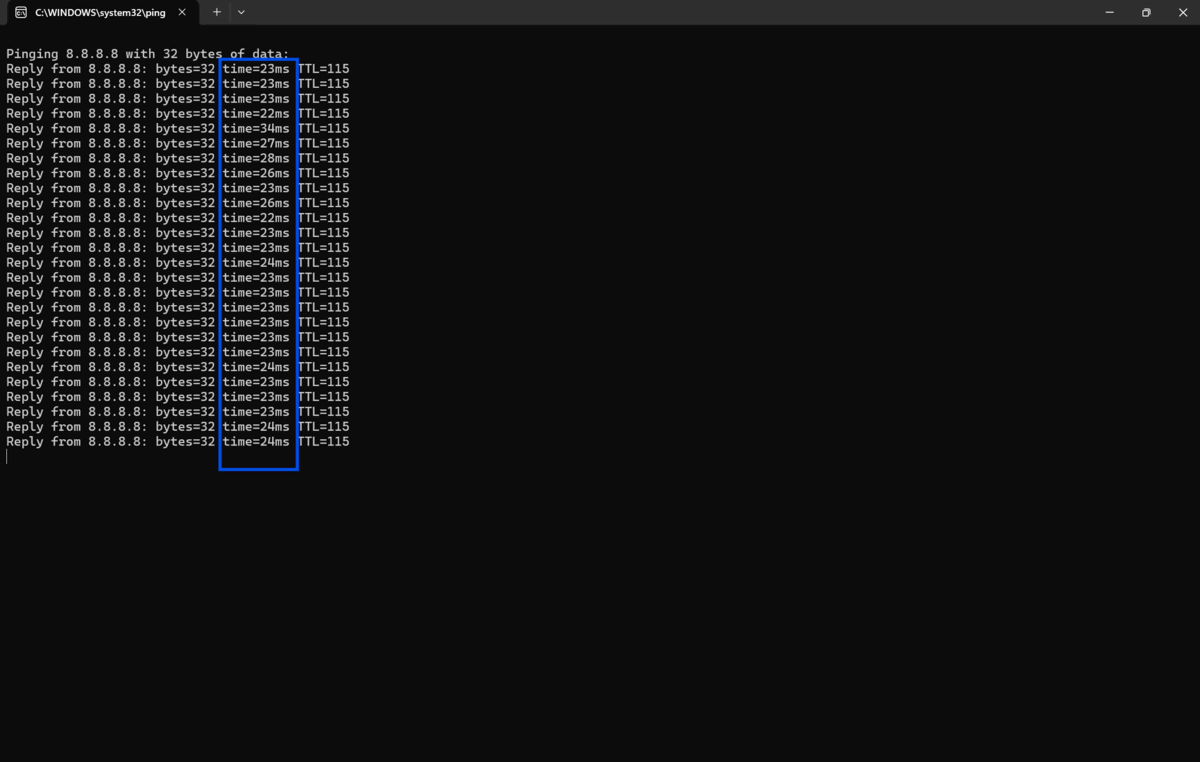
Check your internet connection stability on both the local and remote Macs using a ping test to ensure latency is below 50ms.

-
Open System Settings on your macOS, navigate to Privacy & Security, and select Accessibility. Ensure the AnyDesk toggle is turned on; if it is already on, toggle it off and back on to refresh the permission.
-
Stay in the Privacy & Security menu and ensure AnyDesk has permission under Screen Recording, as this is vital for the app to sync frames correctly.
-
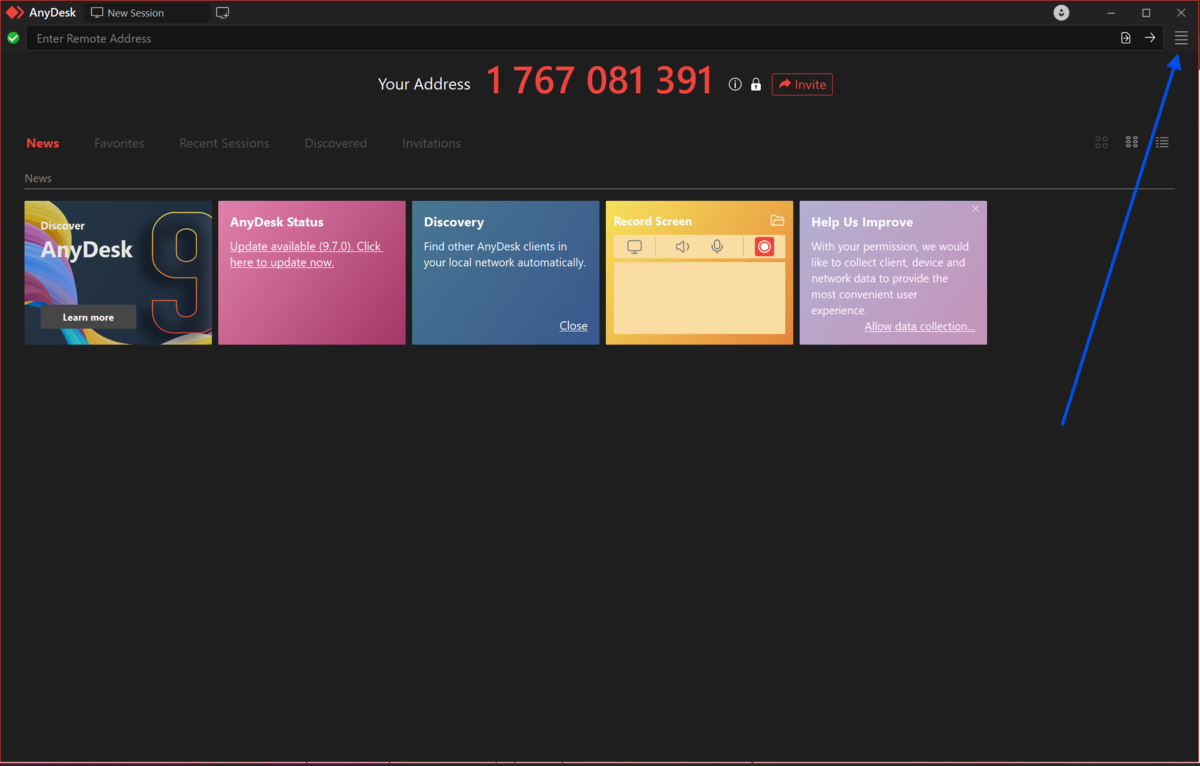
Launch AnyDesk and open the Settings menu by clicking the four-line icon in the top right corner.
-
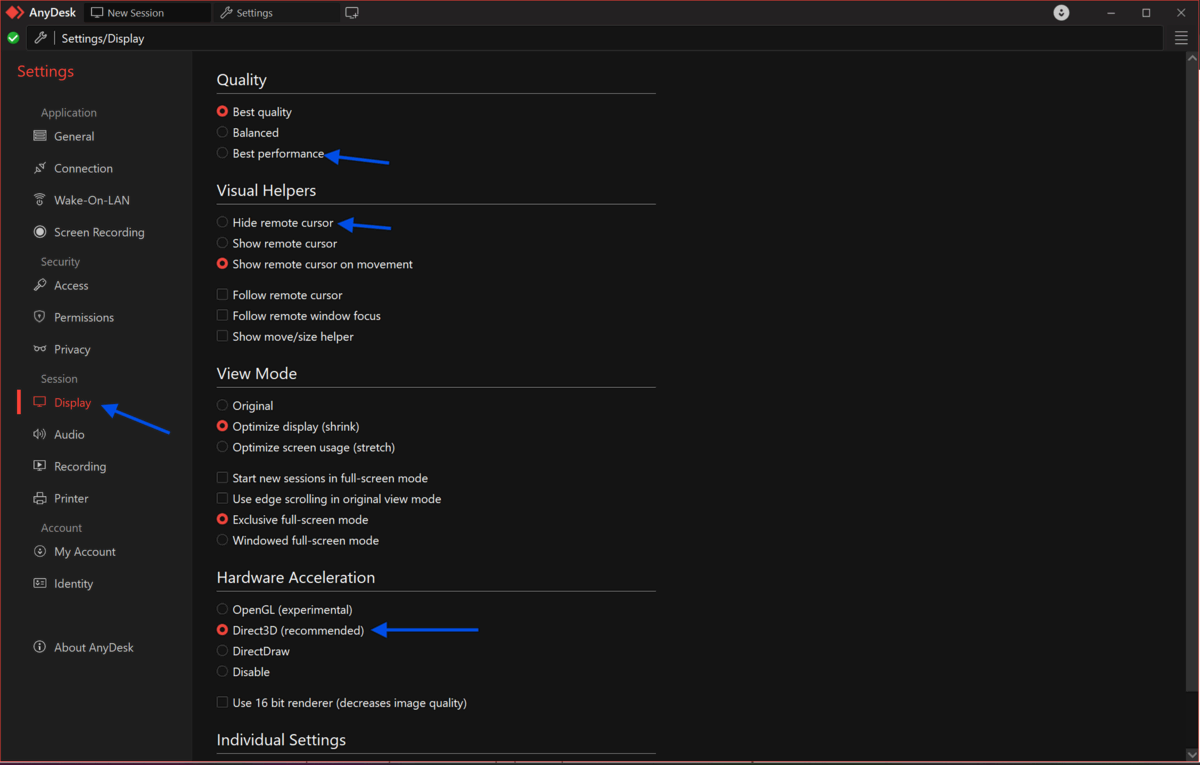
Go to the Display section and change the "View Mode" to Optimize for Reaction Speed rather than "Original" or "Best Quality."
-
Uncheck the box for Show Remote Cursor if you find the visual lag is distracting you from your typing flow.
-
In the same Display settings, select Fast Rendering or ensure Hardware Acceleration is enabled to reduce the CPU load on your Mac.
-
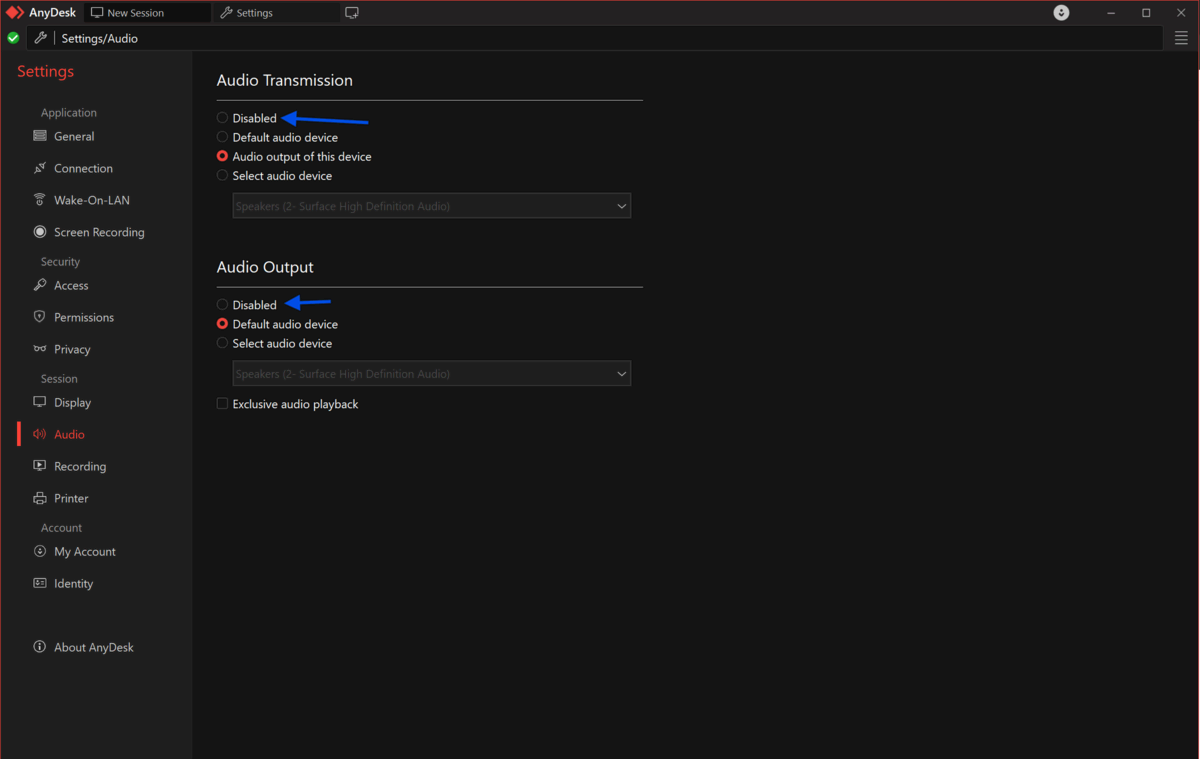
Navigate to the Audio settings and disable Audio Transmission if you do not need to hear the remote computer, which saves significant bandwidth.
-
Switch from a Wi-Fi connection to a wired Ethernet cable whenever possible, as Wi-Fi "jitter" is a leading cause of erratic keyboard behavior.
-
Lower the screen resolution of the remote computer through the AnyDesk toolbar during a session to reduce the data load.
-
Close high-bandwidth applications like cloud backups, web browsers with many tabs, or video streams on both machines to clear the data path.
Quick Tips
For a quick fix during an active session, try the keyboard shortcut Command + Option + Shift + 1 to see the connection status; if the "light" is red, the issue is your network. Another helpful trick is to use the "Balanced" quality setting, which provides a middle ground between clear visuals and fast input.
If you are on a very slow connection, switching the remote wallpaper to a solid black color can surprisingly improve responsiveness by reducing the amount of data AnyDesk has to refresh.
Common Mistakes to Avoid
Many users forget that macOS updates can reset security permissions. If AnyDesk worked yesterday but lags today, re-check your Accessibility settings. Another mistake is ignoring the version of the software; always ensure both the local and remote Macs are running the same version of AnyDesk.
Using a VPN can also cause massive keyboard lag because your data has to travel through an extra server. Finally, don't leave the "HD" quality setting on if you are working on a public Wi-Fi network, as it will almost always cause input delays.
Pricing & Availability
AnyDesk offers a free version for personal use, which includes all the basic optimization features mentioned here. For professional use, including commercial support and advanced management features, they offer tiered subscription plans starting at around $28.72 per month. Any desk is available on almost all platforms, Android, Linux, macOS, iOS & Windows.
Final Verdict
Fixing keyboard lag on macOS is all about balancing the "quality" of the image with the "speed" of the data. By following these steps, you can transform a stuttering, laggy connection into a smooth, professional workstation.
AnyDesk remains one of the fastest tools for remote access, provided the macOS security settings and internal display options are configured correctly.
If you want the best remote desktop experience, make sure you have the latest version. You can download the optimized AnyDesk client directly from Fileion today and get back to work without the lag.
FAQs
Why is my keyboard lagging on Mac AnyDesk?
This is usually caused by a combination of high network latency and macOS "Accessibility" permissions not being properly recognized, causing a delay in input processing.
Does macOS Sequoia or Sonoma cause more lag?
Newer macOS versions have stricter security protocols. You must manually ensure that AnyDesk is allowed under Accessibility and Screen Recording in the Privacy & Security settings.
Can I fix this without a paid license?
Yes, all the performance and display settings required to fix lag are available in the free version of AnyDesk for personal use.
Will using a wired mouse and keyboard help?
While it won't fix network lag, it removes the tiny bit of latency added by Bluetooth, which can make the overall experience feel slightly snappier.
How do I check my actual ping in AnyDesk?
During a session, you can hover over the "Monitor" icon in the toolbar or use the status menu to see the current millisecond delay of your connection.
Comments
Let us know about your thoughts
Explore more articles related to AnyDesk
Here you will find all the latest tips and tricks about AnyDesk. Also you will get many solution of problems which you may face while using this app.

Published at: Mar 08, 2026
The Ultimate Security Checklist for AnyDesk Using 2FA and RSA 2048 Key Exchange
Remote desktop tools are convenient, but convenience without security is a risk you cannot afford....
Published at: Apr 12, 2026
Optimizing AnyDesk for Slow Internet: Best Settings for Low-Bandwidth Networks
If you have ever tried using AnyDesk on a slow internet connection, you already know the...


Click. Connect. Control. Anywhere.
AnyDesk is a fast, secure, and lightweight remote desktop app that lets you access and control devices from anywhere. Whether you're providing IT support, collaborating with teammates, or working on the go, AnyDesk ensures smooth performance on all major platforms.